Webmethods Optimize For process : Web Service Data Collector Tutorial

This tutorial is explaining in details how to use webmethods optimize web service data collector. So it is strongly recommended to read our first post regarding the Optimize for process if you are not familiar with webmethods Optimize for process.

Here is the link to the first tutorial:

https://webmethodsexpert.com/2014/07/20/webmethods-optimize-for-process/

As we discussed in the last tutorial, you can use the web service data collector to send events to webmethods Optimize for process to calculate and monitor the important KPIs and statistics of your business.

You can use the web service data collector to send data for optimize from a step in your business process, or from a flow service, or even from a non-webmethods program.

Note: all the information in this tutorial is for webmethods version 8.2 After applying the latest fixes. The information should be valid for webmethods version 9.x.

Let’s go directly into the steps to call the web service data collector from webmethods flow service:

  1. Make sure that the web service data collector is installed and its wsdl is accessible. Here is the url for the wsdl:

     http://datacollectorServer:12603/services/WSDimensionalDataCollector.wsdl

Replace the ‘datacollectorServer’ with the server name of the data collector. In the below screen shot we replaced it by ‘localhost’.

wsdl web service DC

      2.  Open SoftwareAG designer, and connect to the integration server.

     3. Create a new web service Descriptor from the main menu –> File –> New –> web service Descriptor.

new web Service Descriptor

    4. Choose the location of the new descriptor and it’s name. We will call the new web service descriptor wsDataCollectorClient. Then click ‘Next’.

    5. Choose to create the descriptor as ‘Consumer’, and click ‘Next’.

new WS Descriptor

        6. In the Source location, choose ‘File/Url’: enter the link of the web service data collector that we verified in earlier step, and then click ‘Finish’.

select WSDL location

   7. Please go to the package/folder used to create the new descriptor, and you will find the new WS descriptors, and the connectors (operations/services) and ready for use.

wsDC folder structure

    8. To send event to webmethods Optimize for process use can call the new generated connector ‘IMonitorDataCollector_addEvent’.

    9. Here is an example for calling the ‘IMonitorDataCollector_addEvent’:

publish to optimize flow service

attributes values

Input parameter

Value

Description

tns:addEvent

    eventType

SalesReport

The name of the event as will be seen in the MWS after sending the first event.

    tns:Event.attribtes

         n5:BusinessDataValue[0]

first element in array of fields/Attributes in the event

                      name

Quantity

field name in the event ‘SalesReport’

                      value

1

The value of the field

         n5:BusinessDataValue[1]

first element in array of fields/Attributes in the event

                      name

Product

field name in the event ‘SalesReport’

                      value

Mac Book Pro.

The value of the field

     10. We will run the service once to send the new event to Optimize.

     11. Please go to MWS –> Administration –> Analytics –> KPIs –> Business Data, and you will see the new event ‘SalesReport’ under the unmapped event.

new event in MWS

     12. If you click on the new event ‘SalesReport’, you will see the two fields ‘Quantity’, and ‘Product’ ready to be configured.

event details in mws

This is the end of this tutorial. Please check section 3 ‘Configuring the new Events in Optimize through MyWebmethods.’ from our webMethods Optimize for Process Guide to complete configuring the event in webmethods Optimize.

https://webmethodsexpert.com/2014/07/20/webmethods-optimize-for-process/

We are looking forward reading your comments and questions.

Follow us:

on twitter: @WM_Expert

LinkedIn group: webmethodsExpert.com

(C) 2014 Hossam Elsharkawy. All rights reserved.
Installing Fixes with SoftwareAG Update Manager

As requested by one of our valued users, we are going to discuss the procedure for installing and checking the fixes of any webmethods components by SoftwareAG update manager.

Before starting you have know that Empower (http://empower.softwareag.com) is the website for softwareAG/webMethods clients to contact the support, check the knowledge base, download the product documentation, check the latest fixes, and download the latest fixes (through the Update Manager).

Starting from wemethods version 8, softwareAG introduced its new component ‘Update Manager’ which is responsible for:

Item

Description

Install fix from empower

– Install the fix directly from empower and you will not keep a local copy from the fix to be deployed to other servers.

– Empower account required.

Install fix from Image.

– You already downloaded the fix image and you will use it to install the fix.

– Empower account not required.

Create a fix image.

  • You will create an image with the fixes you need, and you will install it later.
  • Empower account required.

View installed fixes

  • You want to check the installed fixes on a specific system.
  • It is better to check the fixes directly in each component as this option sometimes not showing the right information.

Uninstall fixes

– Uninstall ONLY the last installed fixe.


Software Update Manager is one of webMethods components. You can install using SoftwareAG installer, the following steps can be used to install any webMethods component:

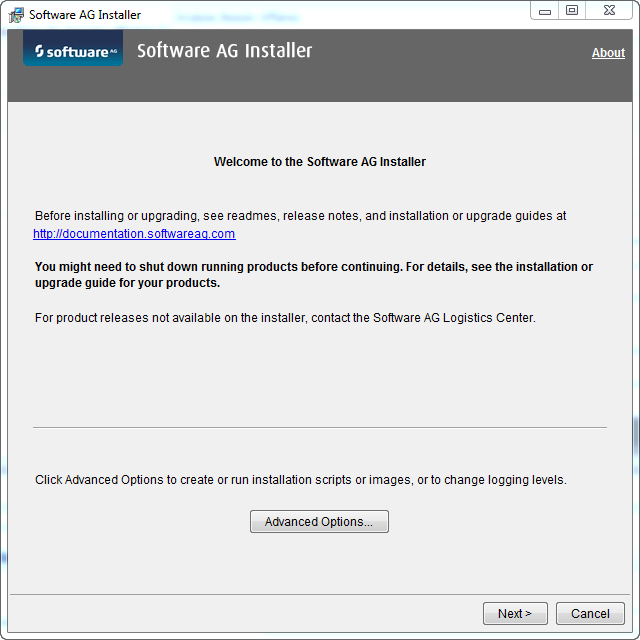
1. Open SoftwareAG Installer

Installer main page

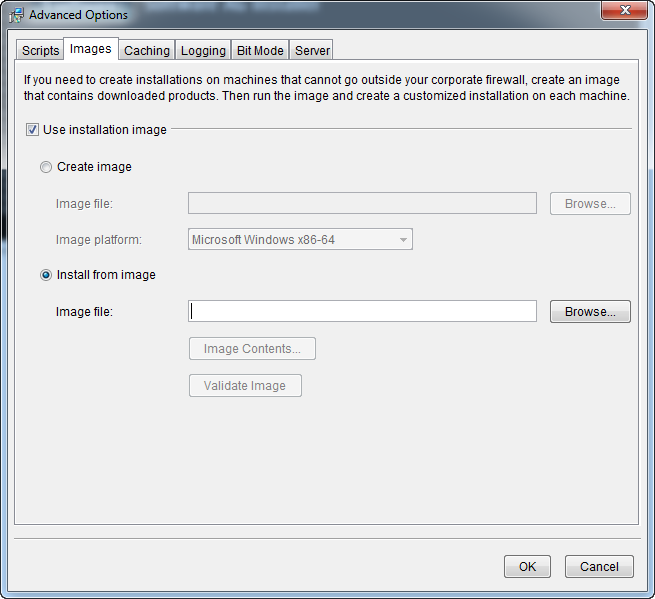
2. If you want to install from existing image click on the ‘Advanced Options’ button. But if you want to install the component (update manager) from SoftwareAG Empower then click ‘Next’ directly.

         a. In case of image choose the image from your local disk or network drive.

            Installer Advanced option

        b. If you will download the component (update manager) from empower, then enter your empower account login and password; and choose webMethods version you are using.

Note: If this is the first time to download a component or Fix from empower you will have to login to empower home page (empower.softwareag.com) to accept the license agreement.

Installer empower information

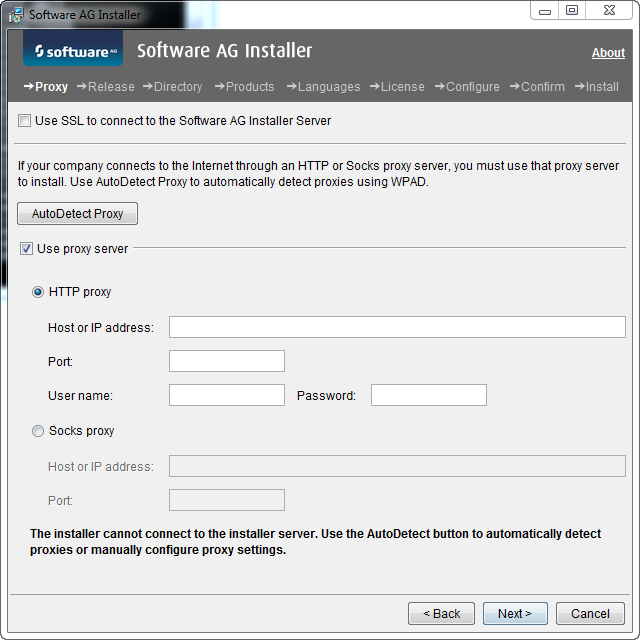
Configure the proxy to allow the installer to connect to empower through the internet.

Installer proxy configuration

         3. You will see the list of available products. Choose the ‘Update Manager’ (it is in gray in the screen shot below as it is already installed).

Now we have SoftwareAG update manager ready for use. Here are the steps to install or check for new fix:

     1. Open the update Manager by opening: ../SoftwareAG_Directory/UpdateManager/bin/UpdateManagerGui

update manager Install from image

        2. Choose the option you want, use the table provided in the beginning of the article.

Note: It is strongly recommended to create an image for your fixes as it is not always possible to access the internet from all server.

Product Directory: Is the location of the software/webmethods installed components, or the components you want to update (you can access it through the network).

Image File name: Is the name of the existing image you will use to install fix (Install from Image), or the name of the image
you will create in case of ‘create or add fix to image’.

Empower username and password are used only in the following cases:

           a. Install Fix from Empower.
b. Create or add fix to image.

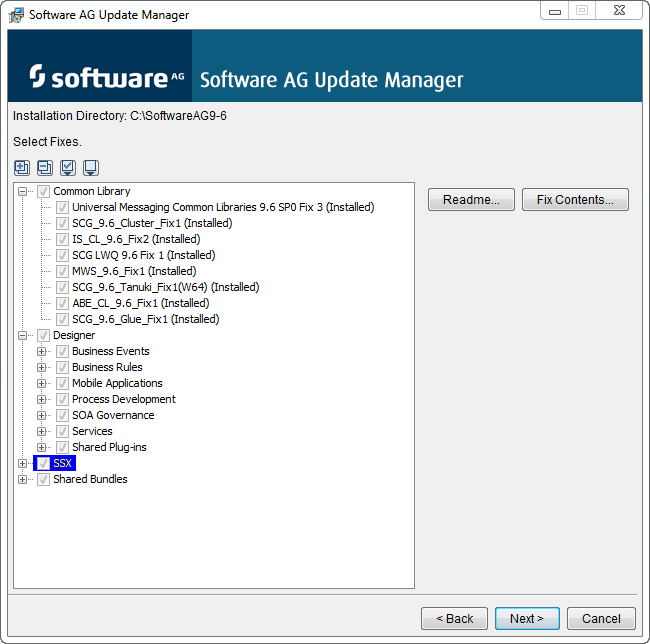
        3. After making your choices you will see a list of the available fixes for each component in the chosen ‘Product directory’.

Note: If the webmethods components are installed in separate directories or servers, then you will have to run the update manager once to download or check the fixes. For example in below the screen shot we can see the fixes for Designer, and common libraries as these are the only installed components in the ‘Product directory’.

update manager updates available

        4. You can check the ‘Read Me’ file before installing the fix to follow the instruction and understand the impact of the fix.

Tips and tricks:

            If you uninstalled a fix and you want to install it again the ‘update manager’ will not be able to reinstall because it will assume that it is already installed. To overcome this problem open the update manager from the command line with the following parameters command:

../SoftwareAG/UpdateManager/bin/>  UpdateManagerGui -overInstall true

We hope that you enjoyed the tutorial, and we are looking forward reading your comments and questions.


Follow us:

on twitter: @WM_Expert

LinkedIn group: webmethodsExpert.com

(C) 2014 Hossam Elsharkawy. All rights reserved.